Loading the firmware
There are four methods for getting the firmware, you can download a precompiled release, compile graphically,
compile from a release, or build from main directly.
Flash a precompiled binary
This method is generally the easiest.
Note
If you purchased a kit from us, you do not need to flash a new version unless a newer version is released.
Start by downloading a binary file from github
Note
As long as you are flashing over USB/UART you do not need the .hex file with bootloader, only those who are flashing ISP need this hex file.
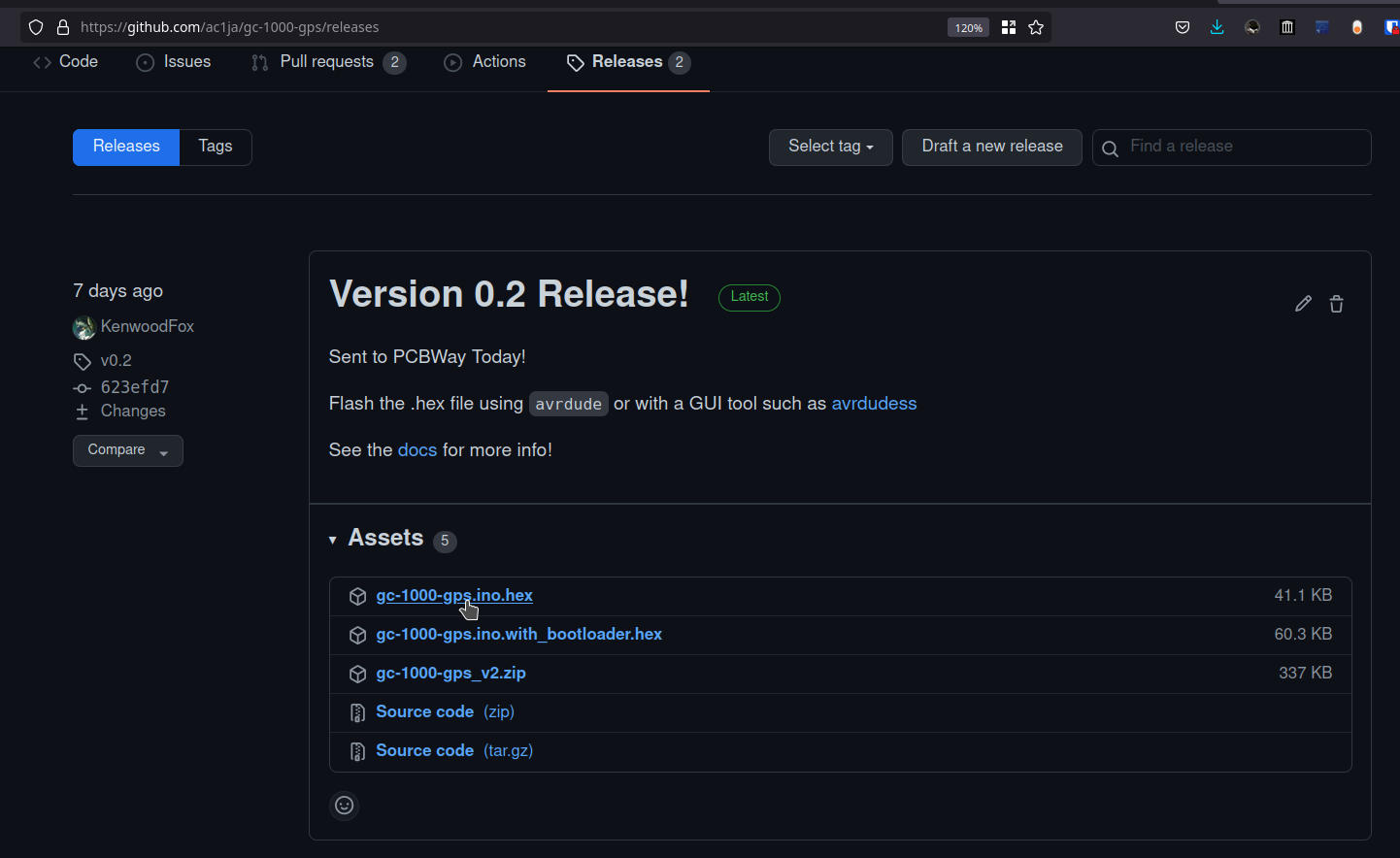
You can flash via a gui tool such as AVRDUDESS or avrdude, you will need to have at lease one of these programs installed.
Download the precompiled hex and flash it using avrdude.
# Flashing with avrdude
avrdude -p m2560 -c stk500v2 -P /dev/ttytACM0 -b 115200 -F -U flash:w:/path/to/gc-1000-gps.hex
Using a tool like AVRDUDESS on windows is the easiest way to load the hex file.
Build from a release
To build from a release, go to the releases page on our github, and select the source code for our most recent release.
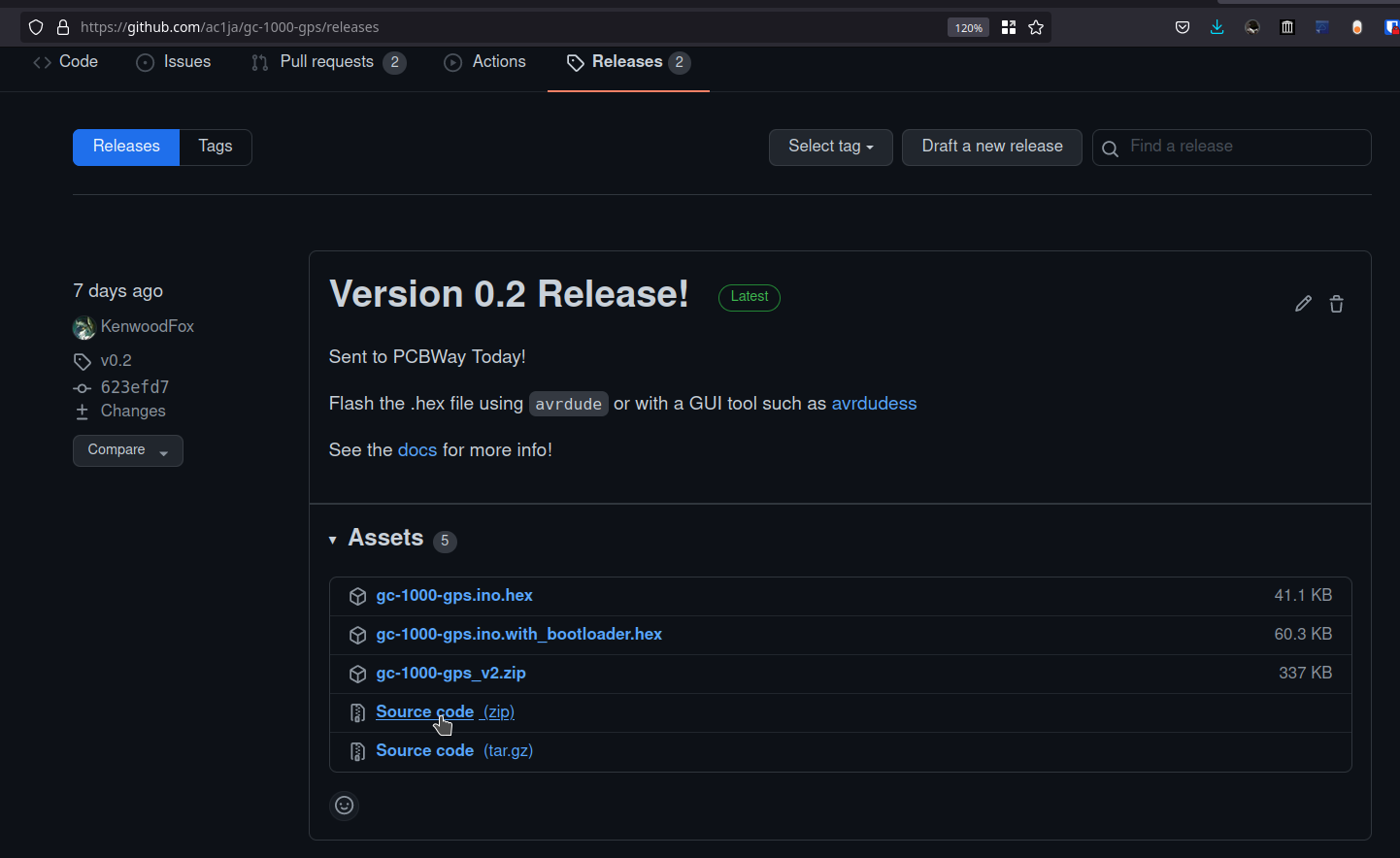
Download a copy of the sourcecode and extract it to your computer.
Open a terminal in the extracted repository. The firmware is built and managed using Platformio, If you don’t have platformio, see the dependencies section to install it on your machine.
cd firmware
make
make upload
Build from main
Building from the main branch may result in more experimental but more up to date features and stability.
Start by cloning the repo down, then CD to the build location and build the code. Use the same steps as above.
Start by installing pio-core for your system, then.
git clone https://github.com/ac1ja/gc-1000-gps
cd gc-1000-gps/firmware
make
make upload
Download vs-code and install the pio-extension.
Use git clone to clone the repo, or download the latest version of
main as a .zip file.
Open the gc-1000-gps/firmware directory in vscode. Then invoke platformio upload
or press alt+ctrl+u.
Troubleshooting
If you get an error such as avrdude: ser_open(): can't open device "unknown": No such file or directory
your mega might not be plugged in or may not have enough power over usb to turn on.
If you get an error such as command not found: arduino-cli make sure you installed all dependencies.